
Step 1: Enter the video playback list
Use PLAYBACK button on the front panel to playback recorded videos.
The icon in the lower corner of the LCD screen has the same function as the PLAYBACK button.
After that, the video playback list under the current Case# folder will be displayed on the LCD screen or external display by default.
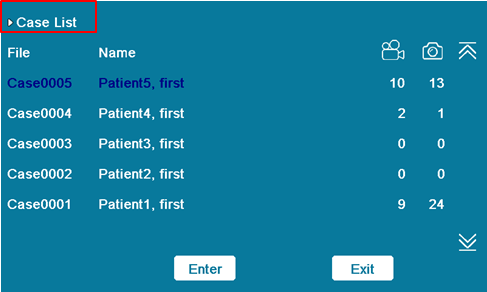
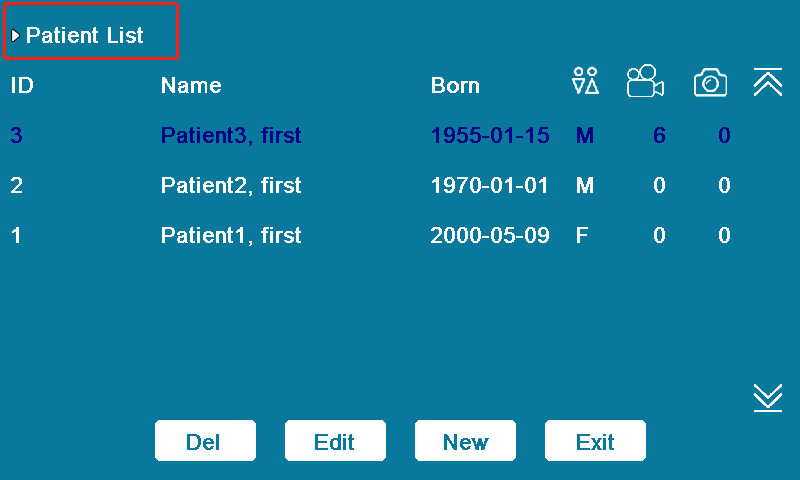
To view videos in other folders, touch Case# in the upper left corner to return to “Case List” or “Patient List”. The following information can be viewed under the Case List: the name of the Case# folder, the patient’s name, the number of captured photos and videos and the file size information. After selecting the folder to be entered, select “Enter” to enter the video playback list.
After entering the video playback list, use the following methods to enter the video playback interface.
Step 2: Enter playback interface
After entering the video playback list, use the following methods to enter the video playback interface.
1. Touch  &
&  on the screen to find the video you want to play back, then touch the screen to select the video. Then touch the Play button to play back the video.
2. After press Playback button, the recording videos list will be displayed on LCD or external monitor, use &
& &
& 
 &
& to select recording video from the list, then press
  button to play it.
Step 3: Video Playback Operation
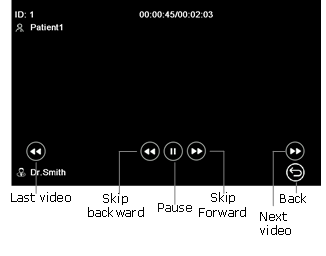
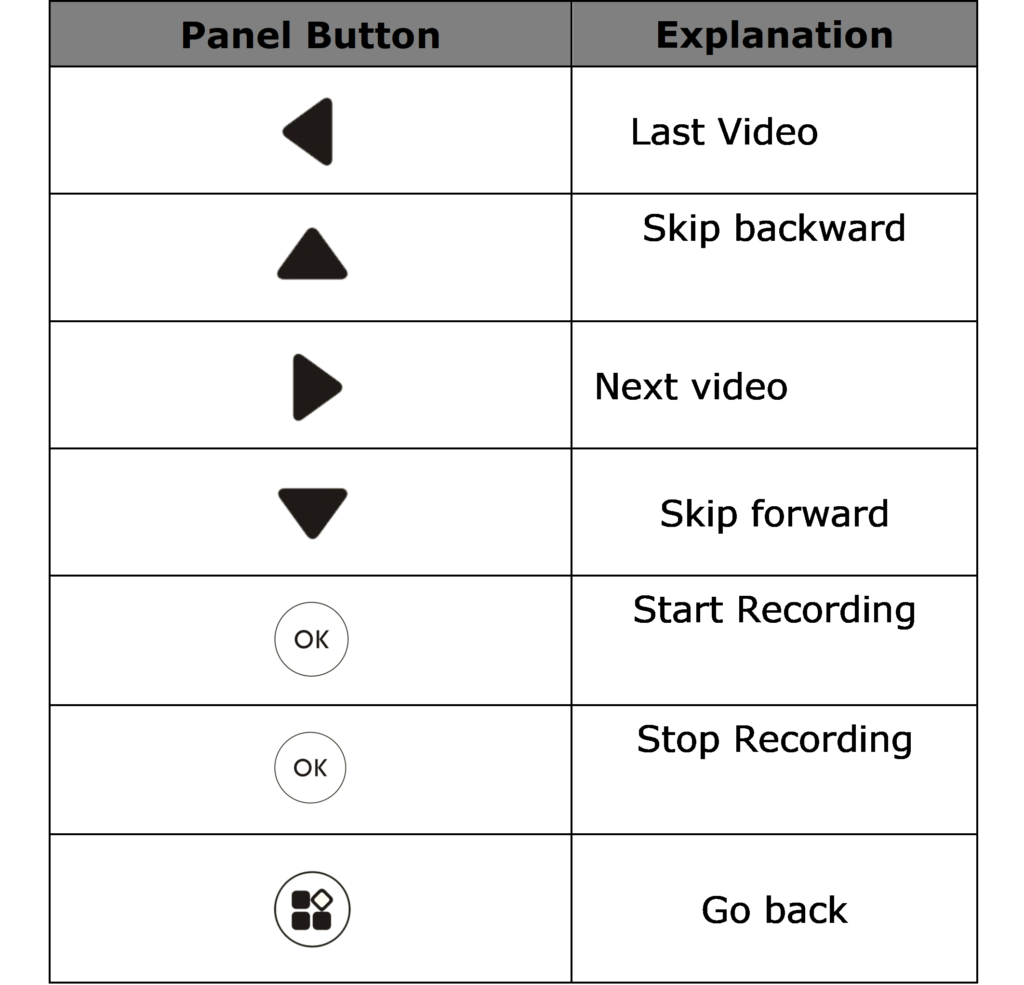
After successful completion of the above operations, the video playback interface will appear on the display, and the following operations can be performed on the video through the buttons on the screen or panel.