

ZowieBox supports recording via USB, TF card or NAS. Please insert the USB or TF card into the device first.
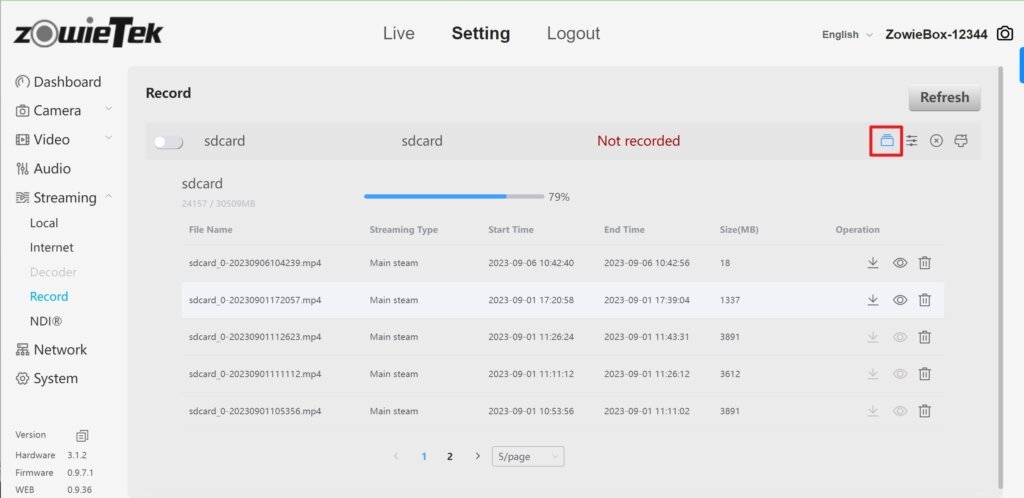
Log in to the web console of ZowieBox, click Setting->Streaming->Record to reach the recording control interface.

Video list
Click the first button of the recording task to get the recording video list, where the file name, stream type, start time, end time, file size, download, online preview, and delete operations of the video will be displayed.The file size for online preview and download should not exceed 1.9GB.
Set recording parameters
Click the second button of the recording task to set the recording parameters.
Auto
After the auto mode is turned on, it will automatically start recording the next time the device is started.
Loop
After the loop recording is turned on, the earliest video file will be automatically deleted when the memory is insufficient to ensure continuous recording.
Alias
Recording task name.
Format
Supports recording video files in ts, mp4 and mov formats.
File Split Type
It supports splitting by size or by time. After the selection is complete, select the specific split size or time in the selection box below.
Video File Prefix
The name prefix of the recording file, the specific format is “file prefix-device year, month, day, hour, minute, second”.

Eject storage device
Click the third button of the recording task to eject the device.
Format
Click the fourth button of the recording task to format the storage device into FAT32 or exFAT format.
